
Outbound calling
Normally Live Hub receives a call and connects it to your bot. Outbound calling reverses that: your dialer application asks Live Hub to place a call to someone, and Live Hub connects that call to the bot when they answer. The feature is also called dialout.
Use outbound calling to drive calls from your own application. If you want Live Hub to run the calling for you, with target lists, scheduling, and progress tracking, use Outbound automation under Hub+ instead.
Live Hub places an outbound call as follows:
- Your dialer sends an HTTPS request to Live Hub naming the bot and the number to call.
- Optional: Live Hub tells the bot a call is starting, passing the call's parameters.
- Live Hub places the call through the voice channel the routing rule points to: a SIP connection, or a phone number to call from.
- The person answers. Speech-to-text starts, their first utterance goes to the bot to trigger its logic, and Live Hub sends the bot the call-initiation event.
- Optional: Live Hub sends your dialer asynchronous status notifications: answered, failed, or completed.
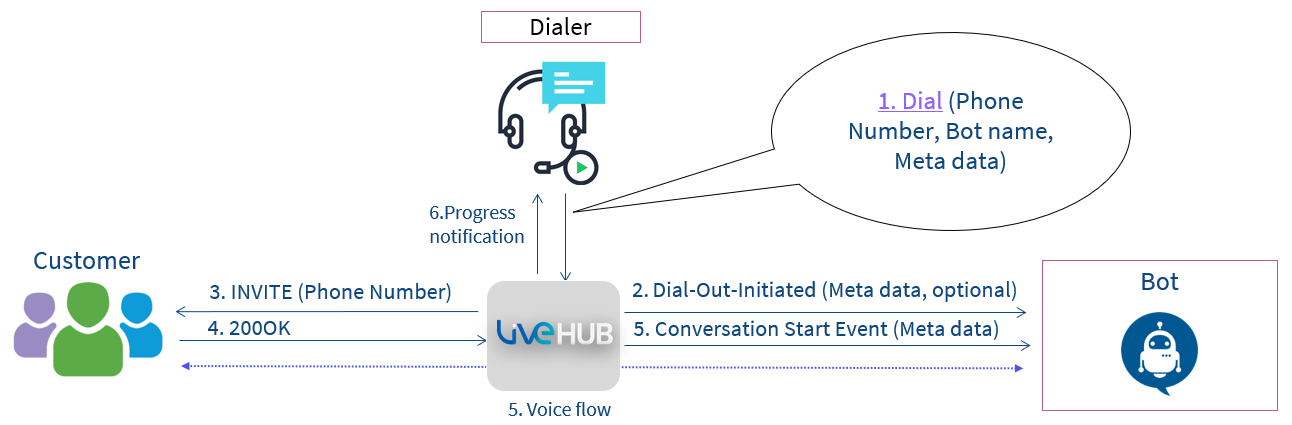
Live Hub can also detect whether a human or a machine, such as voicemail or a fax, answered. See Dialout API.
Before you start
Outbound calling over phone numbers supplied by AudioCodes needs an Essential plan account, and you have to contact AudioCodes to have it switched on. See Account plans.
Calls are rate-limited per bot number: 1 call per second and 3 concurrent calls. Contact AudioCodes to raise these limits. The account's own call limits apply on top. See Configure call limits.
Enable outbound calling
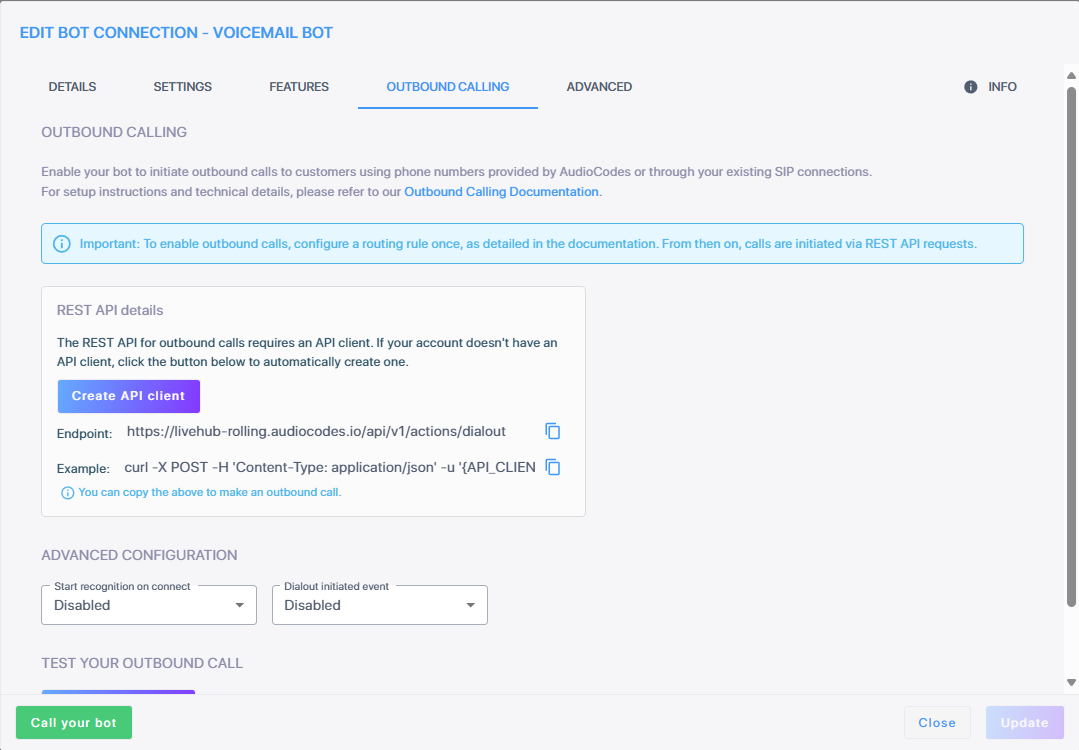
You enable outbound calling per bot connection, on the connection's Outbound Calling tab, together with the API client your dialer authenticates with.
To enable outbound calling on a bot connection:
-
In the Navigation pane, select Bot connections.
-
On the bot connection, click Edit, and then select the Outbound Calling tab.
-
Click Create API client.
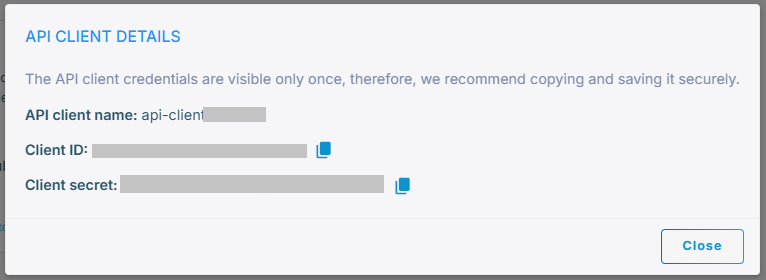
Live Hub shows a client ID and client secret. Copy them now, because the secret is not shown again. Your dialer authenticates with them.
Instead of this button, you can create the API client yourself: click your account in the top-left corner, click Access control (IAM), and then add an API client and assign it to the Call Control and Call Data Manager user groups.
-
Under Advanced configuration, set:
- 'Start recognition on connect' — Enabled starts speech-to-text as soon as the call connects. Leave it Disabled, the default, if the bot should not expect the person to speak first.
- 'Dialout initiated event' — Enabled sends the bot a copy of the START message each time a call is initiated. It is Disabled by default.
-
Click Update.
Create a routing rule
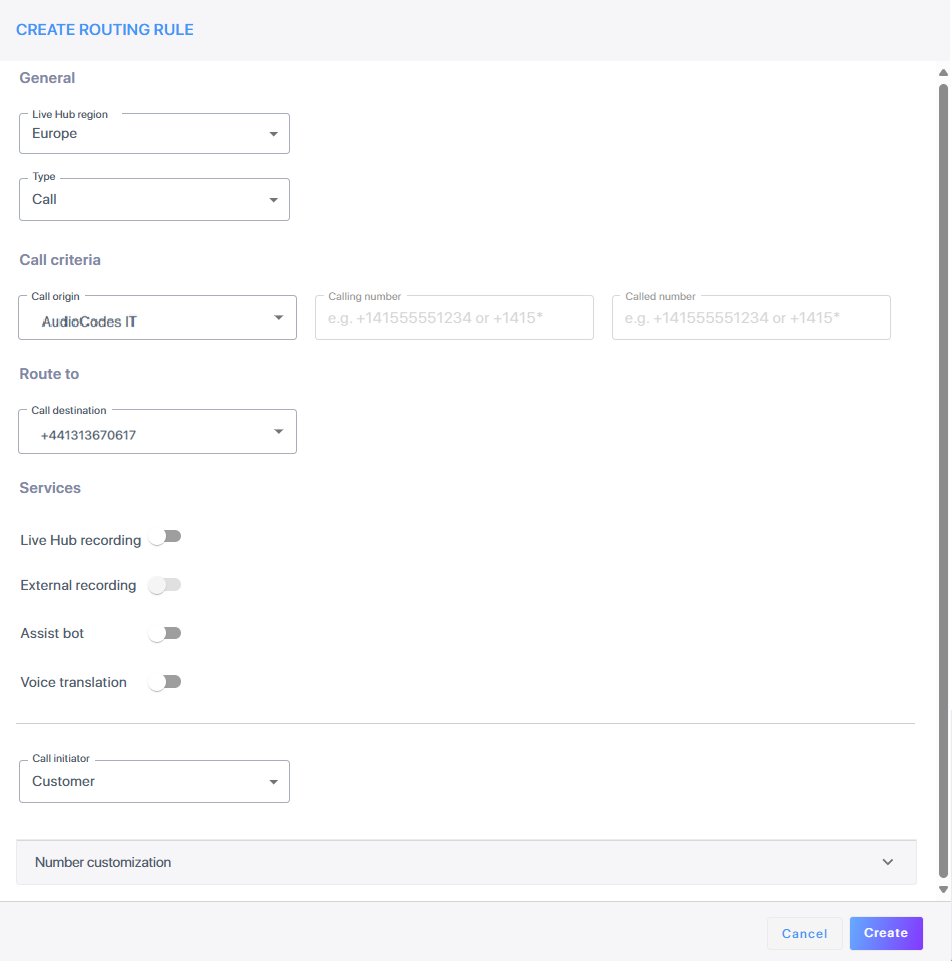
A routing rule tells Live Hub how to reach the destination in the dialout request. Its call origin is the bot connection, and it routes to whichever channel places the call. No call goes out until the rule exists.
To create the routing rule:
-
In the Navigation pane, select Routing, and then select the Routing Rules tab.
-
Click Add new routing rule.
-
Under General, from the 'Type' drop-down list, select Call.
-
Under Call criteria, from the 'Call origin' drop-down list, select the bot connection.
-
Under Route to, from the 'Call destination' drop-down list, select the SIP connection to route through, or the phone number to call from.
For everything else a rule can do, see Routing rules.
Trigger a call
Your dialer sends a POST request to /api/v1/actions/dialout with the bot
connection's ID and the number to call. The request uses HTTP Basic authentication with
the client ID and secret, not the bearer token that the rest of the
REST API uses.
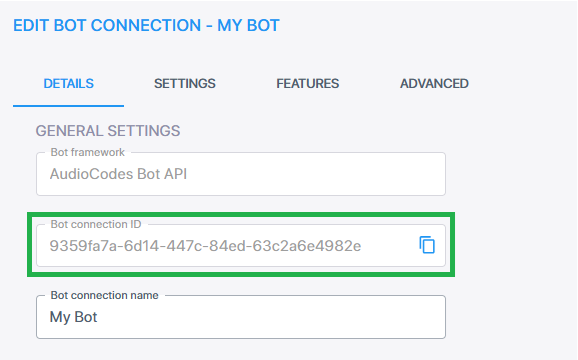
Get the bot connection ID from the Details tab of the connection.
POST /api/v1/actions/dialout HTTP/1.1
Host: livehub.audiocodes.io
Content-Type: application/json;charset=UTF-8
Authorization: Basic {BASE64_CLIENT_ID_AND_SECRET}

{
  "bot": "{BOT_ID}",
  "target": "tel:+123456789"
}
The following curl command sends the same request, where -u builds the Basic header
for you:
curl -X POST https://livehub.audiocodes.io/api/v1/actions/dialout \
  -H "Content-Type: application/json" \
  -u "{CLIENT_ID}:{CLIENT_SECRET}" \
  -d '{"bot": "{BOT_ID}", "target": "tel:{DESTINATION_NUMBER}"}'
For every property the request accepts, the events the bot receives, status notifications, and machine detection, see Dialout API.
Test outbound calling
Live Hub can place a test call from the bot connection's Outbound Calling tab.
To place a test call:
-
On the bot connection's Outbound Calling tab, click Test Outbound Call.
-
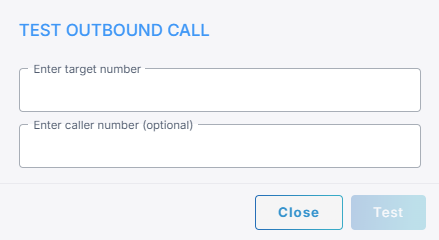
Enter the target number.
-
Optional: Enter the caller number.
-
Click Test.
A message confirms that the test call was generated.